

Use the HitPay integration (recommended)
The HitPay integration connects your HitPay account in a few clicks and writes a HitPay token to your projects as environment variables.Prerequisites
- A Vercel account or team
- A HitPay account where you’re an Owner or Admin
1
Add the integration
Open the HitPay integration on Vercel and click Connect Account. Choose your Vercel team and the projects to connect.
2
Connect your HitPay account
Vercel opens the HitPay setup page. Click Connect HitPay, sign in to HitPay, choose your business if you have more than one, and approve access.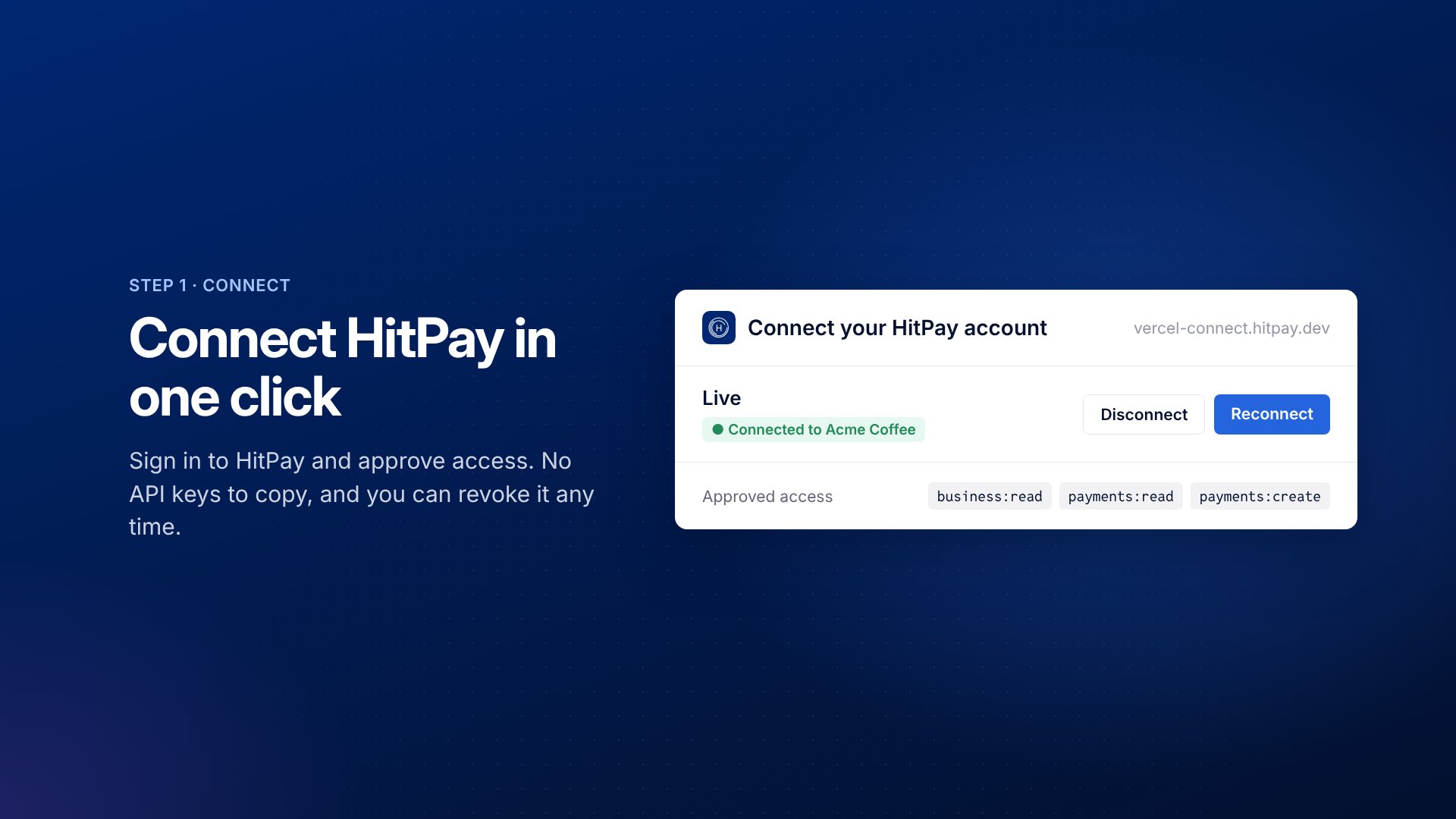
3
Choose your projects
Select the Vercel projects that should receive HitPay credentials, then click Save env vars to projects.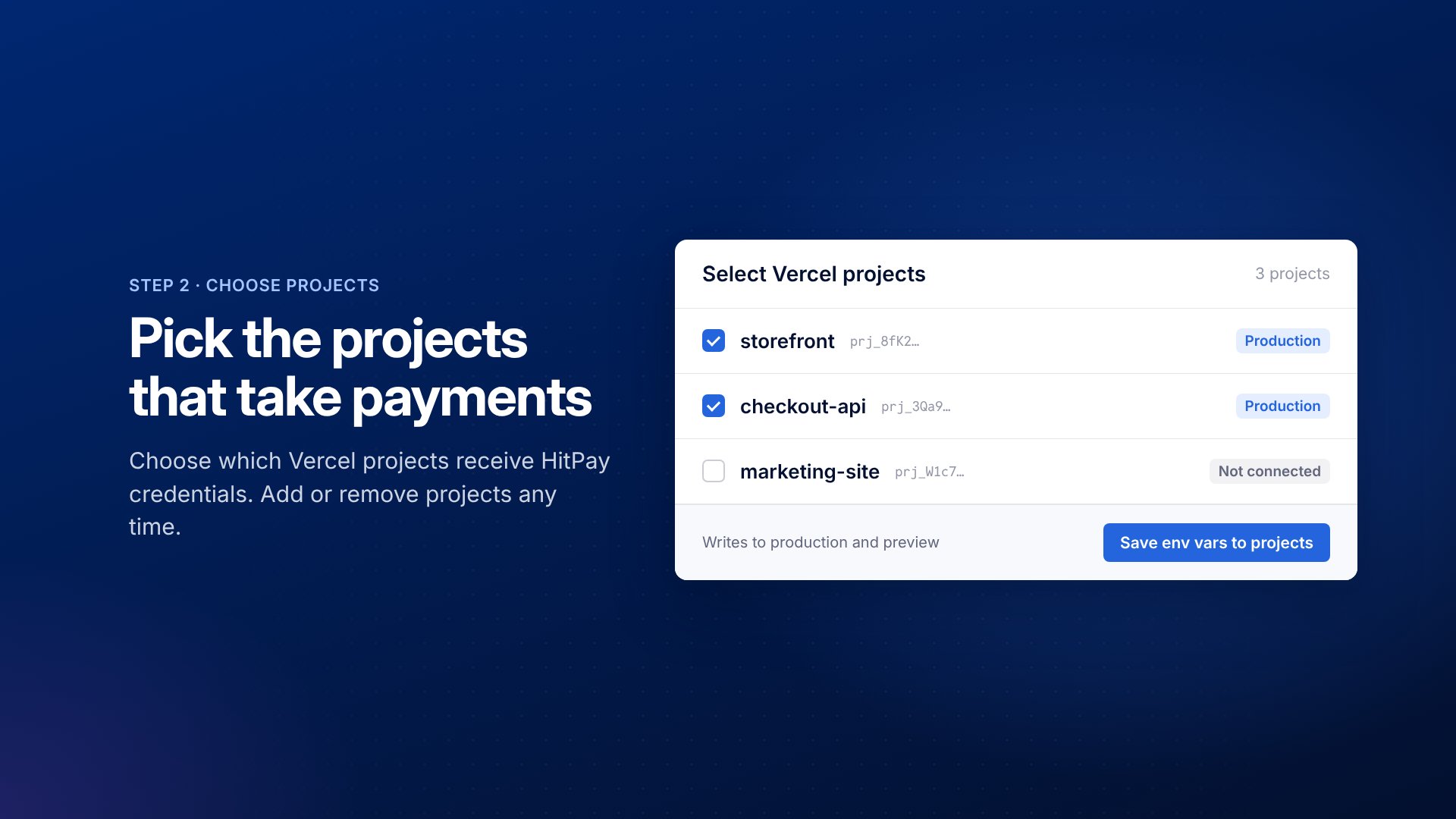
4
Redeploy
Click Return to Vercel, then redeploy your projects. Vercel only applies new environment variables to new deployments.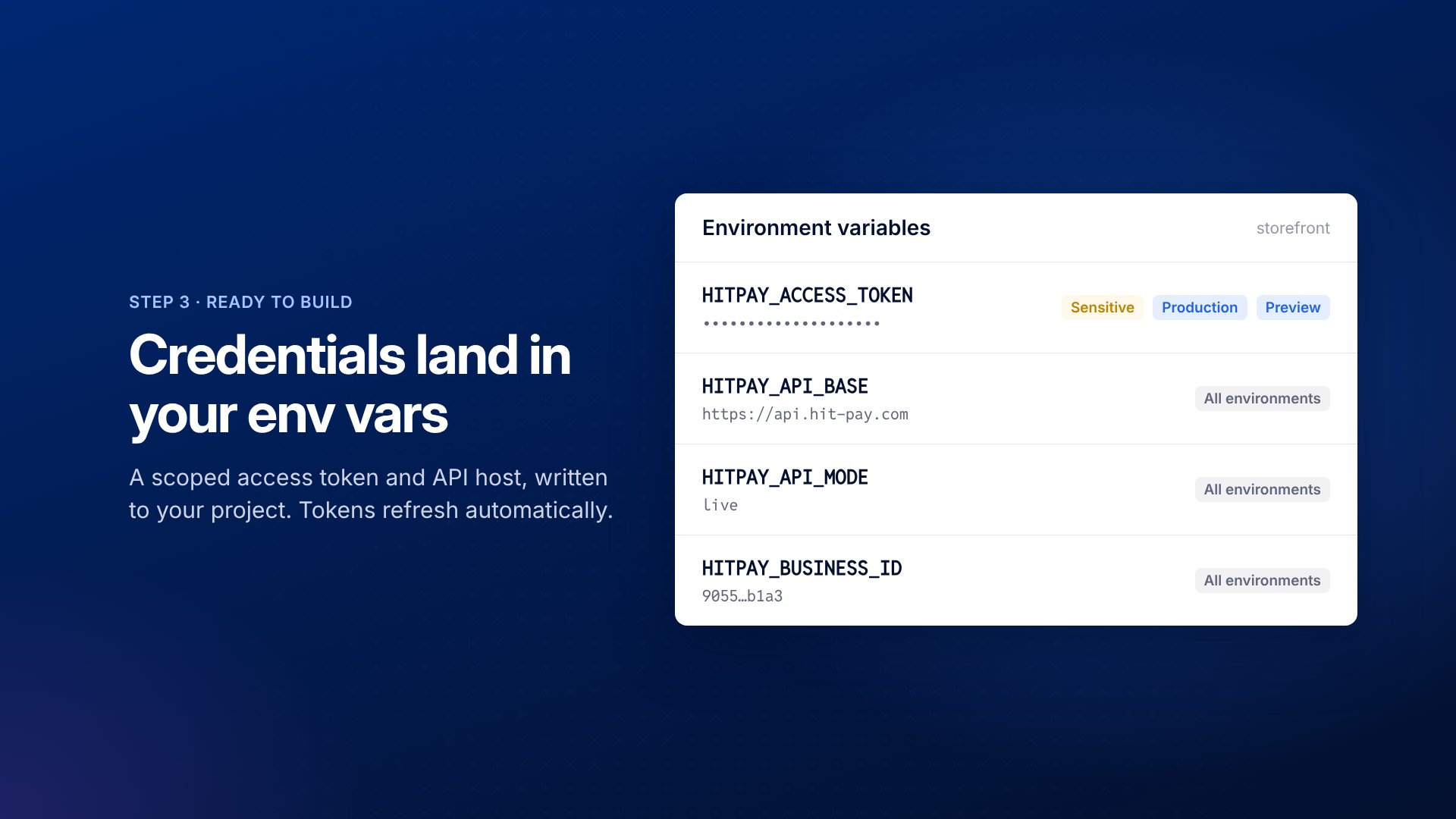
What the integration’s token can do
The integration requestsbusiness:read, payments:read and payments:create. Its token can:
- Read your business profile (
GET /v1/info) - Create payment requests
- Read payment requests and payments
Manage the integration
Change projects or reconnect: In your Vercel dashboard, go to Integrations, open HitPay, and click Configure. Open it in the same browser you installed with. Token refresh: Access tokens last one year. The integration refreshes them 30 days before they expire and updatesHITPAY_ACCESS_TOKEN on your projects. Redeploy to pick up the new token.
Uninstall: Remove the integration from your Vercel dashboard. The integration deletes the HitPay environment variables it added to your projects.
Use Vercel Connect
With Vercel Connect, Vercel keeps your HitPay approval and gives your app a short-lived token when it needs one. Nothing secret is stored in your project, and refreshed tokens take effect without a redeploy. It takes more setup than the integration: you create your own HitPay app and a connector in your Vercel team. Use it if you need scopes the integration doesn’t request, or don’t want a token stored in your project.Prerequisites
- A Vercel account or team with access to Vercel Connect
- A HitPay account where you’re an Owner or Admin
1
Create a HitPay app
In your HitPay dashboard, go to Developers > App Builder and click New App. Add
https://connect.vercel.com/callback to Redirect URIs, then save the client ID and client secret. The secret is shown only once.2
Request payment scopes
New apps only have
business:read. In the app’s detail panel, click Request Scopes and request the scopes you need, such as payments. Wait until HitPay approves the request before you continue. See scopes.3
Add a HitPay connector in Vercel
In your Vercel dashboard, go to Connect > Add Connection > OAuth > Bring Your Own, and enter:
Vercel shows “Discovery did not find OAuth metadata for this server URL.” This is expected. Fill in the endpoints yourself.
4
Connect your project
On the connector page, click Connect Project and choose the project that takes payments. Click Test User Token, sign in to HitPay and approve access to check that the connector works.
5
Get a token in your code
Install
@vercel/connect. Request a token for the connector, and if the merchant hasn’t approved HitPay access yet, send them to the approval URL:lib/hitpay-token.ts
userId is your app’s ID for the merchant. Connect stores one HitPay approval per user ID.Accept a payment
Call the HitPay API from your server with the token as a Bearer token. Requests and responses are the same as with an API key; only theAuthorization header changes. Use the token server-side only.
1
Create a payment request
app/api/checkout/route.ts
2
Send the customer to checkout
Redirect the customer to the returned
url. HitPay’s hosted checkout shows the payment methods enabled on your account, such as PayNow, GrabPay and cards.3
Confirm the payment
When the customer returns to your
redirect_url, read the payment request from HitPay and check that its status is completed:webhook URL when you create the payment request to have HitPay notify your server when the payment completes.
Webhook registration, virtual accounts, static QR codes and terminals aren’t available with OAuth tokens and still need a HitPay API key. See Connect Merchant Accounts (OAuth).
Both options connect live HitPay accounts, so payments made while testing are real. Use a small amount and refund it from your HitPay dashboard.
Use with v0 and other AI coding tools
v0 can’t run the integration’s install flow or set up a Connect connector, so it may ask you to pasteHITPAY_ACCESS_TOKEN or HITPAY_API_BASE into an environment variable form. Skip that form. Install the HitPay integration on the project your v0 chat deploys to, then deploy again.
You don’t need HITPAY_API_BASE: the code above defaults it to https://api.hit-pay.com.
Revoke access
In your HitPay dashboard, go to Developers > Connected Apps and remove the app. HitPay invalidates its tokens immediately, and API calls return401 Unauthorized. Send the merchant through approval again to reconnect.
Troubleshooting
v0 asks you to enter HITPAY_ACCESS_TOKEN
v0 asks you to enter HITPAY_ACCESS_TOKEN
Skip the form. Install the integration on the project the chat deploys to, then redeploy. See Use with v0 and other AI coding tools.
Your app can't find HITPAY_ACCESS_TOKEN
Your app can't find HITPAY_ACCESS_TOKEN
Redeploy the project. Environment variables only reach deployments created after they’re added.
vercel env pull doesn’t download sensitive variables, so the integration’s token isn’t available locally.Connect shows an error after you approve access on HitPay
Connect shows an error after you approve access on HitPay
Check that
https://connect.vercel.com/callback is in your HitPay app’s redirect URIs, and that HitPay has approved the scopes you need. Only business Owners and Admins can approve access.